Manuals
By Team 14
Introduction
Whether you're looking to use our system for development or personal purposes, we have the manuals to get you started on your journey into mapping politics! Below, are our system and user manuals: use the system manual if you're looking to utilise our system from a developer perspective and if you're interested in using the Politics Mapper tool for research, journalism or curiosity, the user manual is the one for you.
System Manual
Deployment
The product is deployed on Ubuntu 14.04 machines. The products dependencies are:
- Java
- ElasticSearch
- Git
- Node.js. With packages:
- Express
- Forever
- ElasticSearch.js
- pm2
Installation
- Install Java and ElasticSearch. Run ElasticSearch as a service
- sudo apt-get install openjdk-7-jre-headless -y
- wget https://download.elasticsearch.org/elasticsearch/elasticsearch/elasticsearch-1.1.1.deb
- sudo dpkg -i elasticsearch-1.1.1.deb
- sudo service elasticsearch start
- Install Git and Node. Clone our repository
- sudo apt-get install git
- sudo apt-get install nodejs, npm
- git clone https://github.com/politicsmapper/PoliticsMapper.git
- Start the retrieval, processing and indexing of the Hansard data using the scripts provided for this (in our repository)
- Firstly download the xml data as described on theyworkforyou.com under “raw data”
- Then: python ElasticSearch/uploader.py <path-to-scraped-xml>
- Produce index of ids
- python script: ElasticSearch/index.py
- Install our node application’s dependencies and start the application using pm2
- cd nodeapp
- npm install
- pm2 start app.js
A set of deployment scripts have also been written to continuously deploy the app on changes on a given branch on the git repository.
User Manual
Welcome to the Politics Mapper Homepage!

On this page, you have several options:
- You may wish to query the Hansard database
- You may wish to read further information about the website
- You may wish to navigate through the homepage through the navigation menu
Homepage Features

You may manually scroll down the homepage to read further information such as our team description and website description.
Clicking on the navigation icon on the top right corner will give you the menu on the right hand side, where you can navigate through each section of the homepage more easily.
Query our Hansard Database

In order to make a search on the Hansard database, you must first click on the search bar. You may then type in your query.
The above example illustrates a user searching for debates relevant to the topic of "unemployment".
After the query has been typed in, press the Return key or click on the search icon.
View Search Results

After pressing the Return key or clicking on the search icon, a search results page will be displayed. The results are displayed in a list format and are ordered from best to worst match in relation to your query.
On the search results page, you will see each result containing the speaker’s name on the top left corner, the date of the debate on the top right corner and a sample of the text as the main text.
You now have two options:
- You may click on “View” to view the full text
- You may click on “Similar” to view other additional texts related to the current text
Viewing a Record

After clicking the “View” option, the system will display to you the full text. This text will contain the previous and next paragraphs of the debate to show he context of that record.
Searching for Similar Records
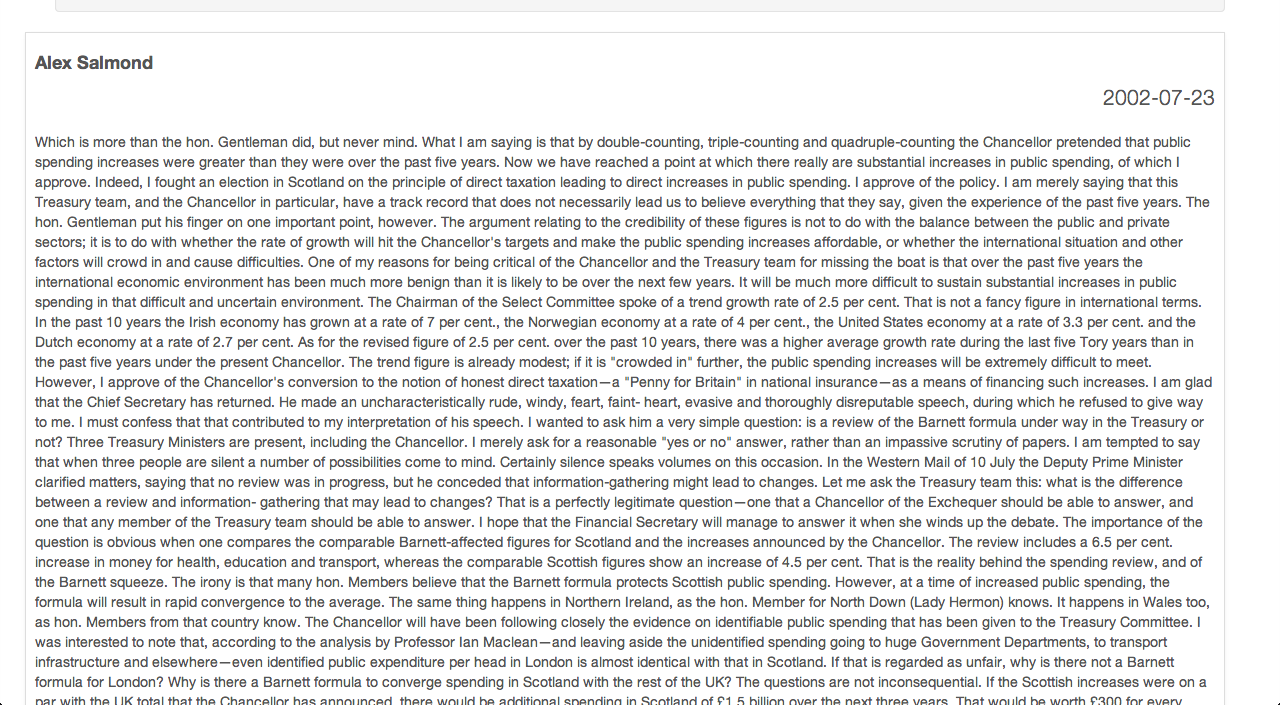
Alternatively, you may have wished to search similar results by going on the “Similar” option, in which case the system will display to you another set of results that are semantically similar.